
Navigation
Access & start a conversation with AI Analyst
Understanding the answer & query transparency
Editing the answer / customizing the visualization
Using AI Analyst inside dashboards & pinning insights
Reset / start fresh
1. Access & start a conversation with AI Analyst
-
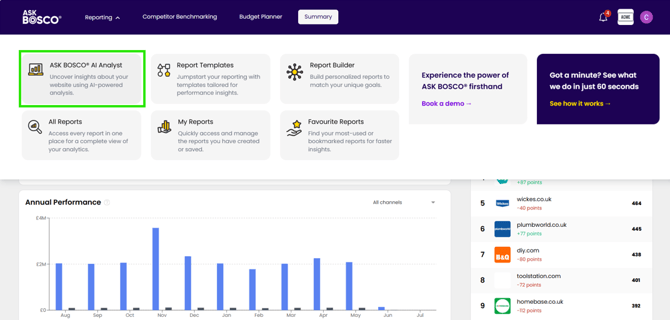
Open Ask BOSCO and go to the Reporting menu (or from any dashboard visualization).
-
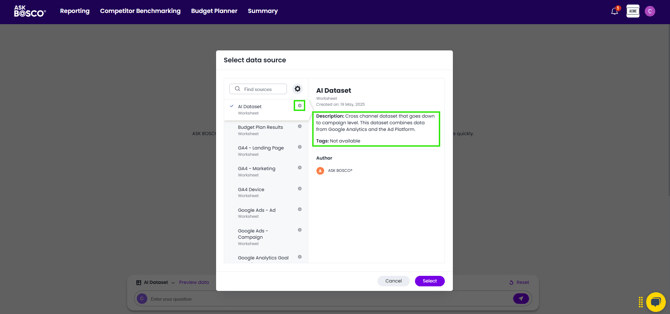
Choose the data source you want to analyze (only those with the BOSCO icon are AI Analyst–enabled).
-
Enter a natural-language question in the search bar (e.g. “best performing channels last month”) → press Enter or click Send.
-
The AI Analyst interprets ambiguous terms (e.g. “best”) based on default metrics (e.g. revenue, conversion, ROAS).
2. Understanding the answer & query transparency
-
The answer is shown in chart or table view (toggleable).
-
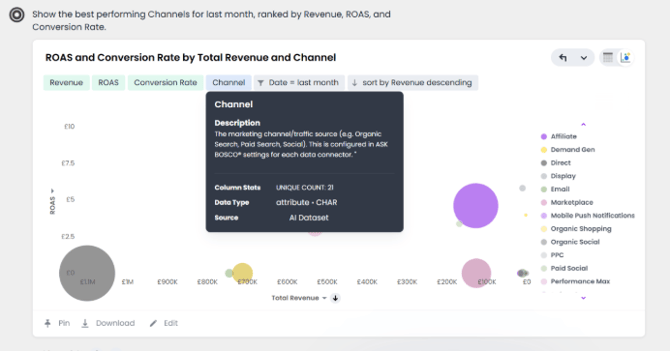
Hover over the search tokens to see how the question was parsed (attributes, measures, filters).
-
You can click for more detail: column stats, data types, formula logic — this gives full visibility into how the result was derived.
-
The results are interactive: you can drill down (right-click on a data point) to explore deeper layers (e.g. by device, campaign)
3. Editing the answer / customizing the visualization
-
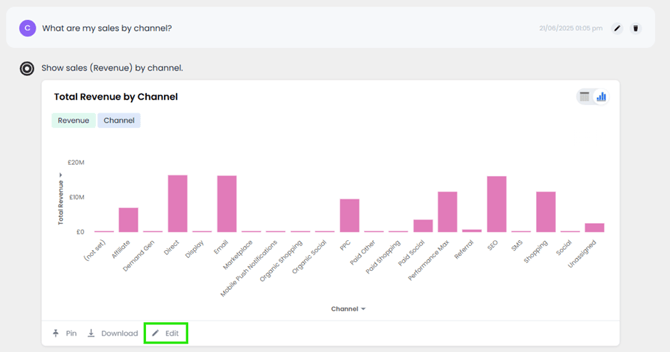
Click “Edit” beneath the answer to open the editor
-
You’ll see a panel with measures, attributes, filters, and formulas.
-
You can modify tokens (e.g. “sort by revenue descending”), add/remove fields, change chart type, or adjust chart configurations (colors, conditional formatting).
-
-
After edits, click “Done editing” to apply or “Discard changes” to revert.
-
You can still ask follow-up questions continuing from your edited view.
-
Optionally, you can view the underlying SQL query that AI Analyst generated — full transparency into metric derivations.
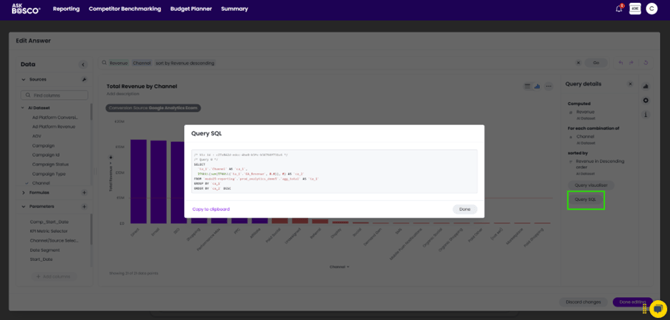
4. Using AI Analyst inside dashboards & pinning insights
-
On any dashboard visualization, hover over it and click the AI Analyst icon to begin a conversation that is contextual to that chart.
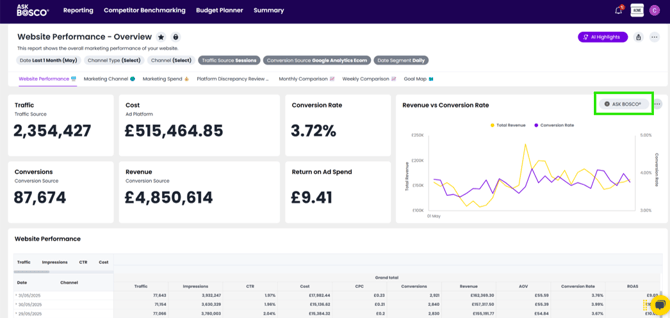
-
ASK BOSCO® will build new answers in that context (e.g. “top 3 channels by revenue”) and show you what transformations or filters it applied.
-
You can also ask new or more complex questions from that point (e.g. “% change in revenue by channel 2023 vs 2024”).
-
When an insight is useful, pin it to a dashboard (existing or new) so it becomes a persistent visualization. Use the Pin icon
 at the bottom of the visualization
5. Reset / start fresh
-
Since the conversation maintains context (each question builds on the last), click “Reset” when you want to begin a completely new line of analysis.
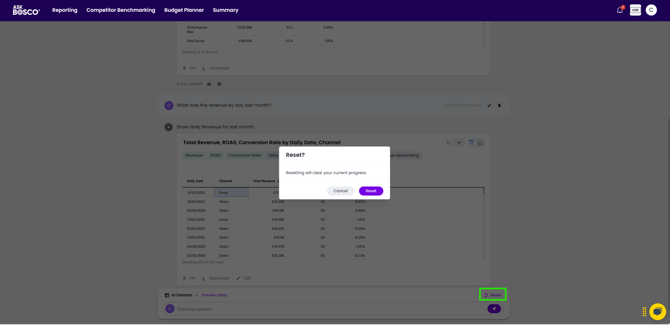
If you want to get into more detail you can also access our full set of learning materials for ASK BOSCO® AI Analyst, using the links below.
Where would you like to go next?
- Best Practice
How to ask the right questions in ASK BOSCO® AI Analyst.
- Using AI Analyst
Article - Using ASK BOSCO® AI Analyst
Demo - Using ASK BOSCO® AI Analyst
- Editing
Article - Editing ASK BOSCO® AI Analyst Insights
Demo - Editing ASK BOSCO® AI Analyst Insights
- ASK BOSCO® AI Analyst in Dashboard Visualizations
Article - Dashboard visualizations and ASK BOSCO® AI Analyst
Demo - Dashboard visualizations and ASK BOSCO® AI Analyst