.png?width=260&height=102&name=ASKBOSCO_Logo_Grey_RGB%20(6).png)
Ways to apply filters in ASK BOSCO®
Applying Filters in AI Analyst
Using Measure Filters and Operator Keywords
What Are Filters?
Filters in ASK BOSCO® allow you to narrow down your results by including only the data that meets specific criteria. These filters use the values within your dataset — including attributes, measures, or date and time fields.
Common examples of filter values include:
-
Marketing channels (e.g., Paid Search, Social, SEO)
-
Sales values or date ranges
- Conversion Source or Traffic Source

Filters can be applied individually or in combination, and they can be layered to create more precise results.
Ways to Apply Filters in ASK BOSCO®
There are multiple ways to apply filters across ASK BOSCO®:
-
Directly in conversations with AI Analyst
-
From filter windows on visual charts or tables
-
Using the Data Source panel
-
Within any existing dashboard
Once a filter is applied, a dynamic filter panel appears where all criteria can be reviewed and adjusted.
Applying Filters in AI Analyst
-
In AI Analyst, enter your query, for example, “What are total sales by channel?”
-
Press Enter. A visualization (such as a bar chart) will appear showing all relevant channels and their sales data.
-
To narrow this view to a specific channel (e.g., PPC), simply ask it to show only PPC as the next part of your conversation.
ASK BOSCO® will update the visualization to show only that channel’s data.
You can add additional filters by typing more values (e.g., Display, Affiliates) and asking it to remove any too.
Using the Filter Panel
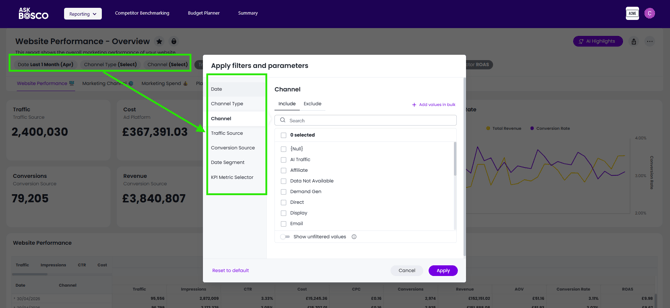
Once a filter is clicked on, a filter menu appears in the centre of the screen. Clicking any of the filter headings down the left hand side panel opens a filter window where you can:
-
Remove or adjust existing filters
-
Add new filters
-
Select all or clear all values
You can also bulk filter by pasting in a list of values from an external source (e.g., .txt or .csv file). Values can be separated by line breaks, commas, semicolons, or tabs.
Understanding Filter Logic
When applying multiple filters, ASK BOSCO® applies logical conditions. For example:
-
If you filter by Channel, and then by Campaign, only campaigns within the selected channels will appear.
-
To view all campaigns regardless of channel, you can choose Show Unfiltered Values.
-
Be mindful of conflicting filters (for example, filtering by a campaign that doesn’t exist in a selected channel will return no results).
Applying Filters in Charts
You can apply filters directly from visualizations:
-
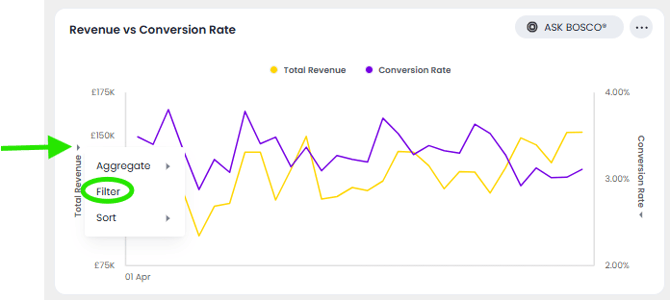
Click the axis label of a chart (e.g., Channel or Campaign).
-
Select Filter.
-
The filter window will open, add a filter condition on which you would like the data to filter and your visualization will update accordingly.
Applying Filters in Tables
To apply filters in Table View:
-
In Table View in a visualization.
-
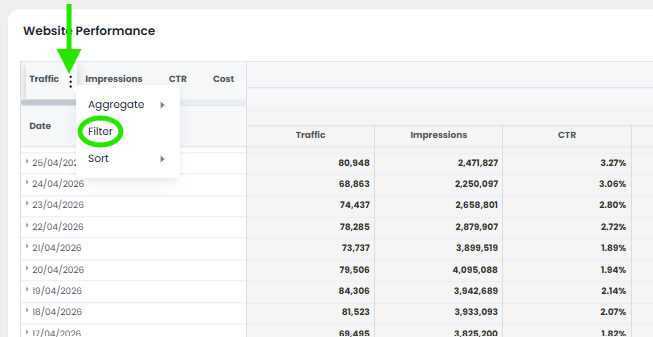
Click the three dots (⋮) in the column header you want to filter by.
-
Select Filter, and the filter window will appear for you to set a filter condition.
Using Measure Filters and Operator Keywords in ASK BOSCO®
This section explains how to filter based on measure values (such as revenue, sales, or conversions) and how to use operator keywords to apply those filters directly in the search bar. You’ll also learn how to exclude specific values and refine your results using logical expressions.
Filtering by Measure Values
Let’s say you want to view products with total sales greater than £10 million. Here’s how:
-
In the AI Analyst type:
“Sales by Channel”
This will return a breakdown of sales across all channels. -
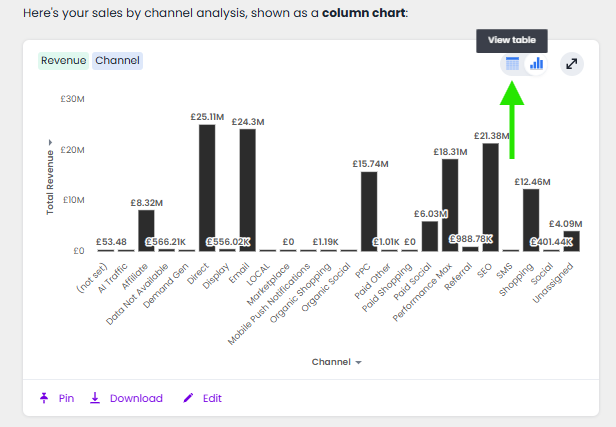
Switch the view to Table Format if it isn’t already.
-
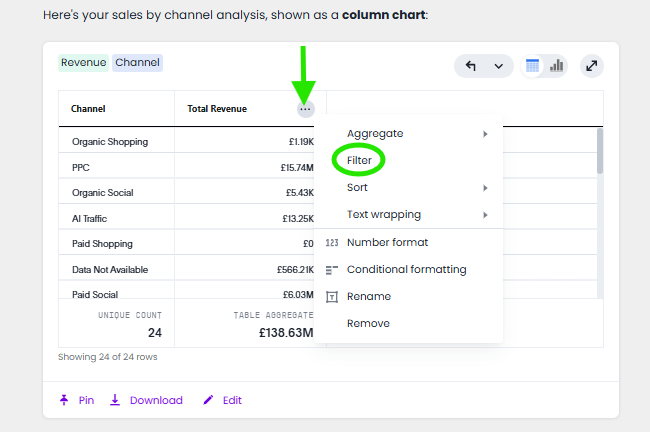
Hover over the Total Revenue column header, click the three dots (⋮), then select Filter.
-
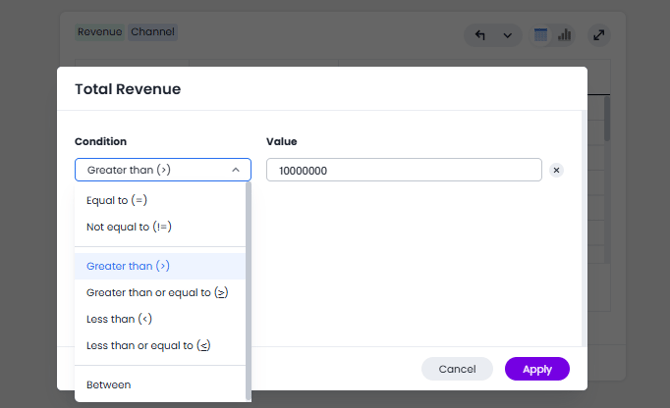
Because Sales/Revenue is a measure, you’ll see options to filter using conditions (e.g., greater than, less than).
-
Click Add Condition, then select:
-
-
Greater than
-
Enter 10,000,000
-
Click Apply
-
The table will now show only categories with sales over £10 million.
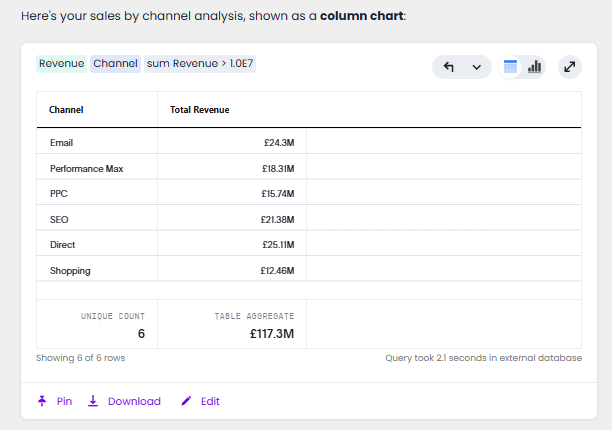
The filter also appears in the visualization as a token:
“Sum Revenue > 1.0E7”
This lets you easily identify active filters and modify them directly.
Using Operator Keywords
You can also apply conditions directly in the Report Builder search bar using operator keywords, without opening any filter windows.
| Operator | Meaning |
|---|---|
| > | Greater than |
| < | Less than |
| >= | Greater than or equal to |
| <= | Less than or equal to |
| = | Equal to |
| != | Not equal to |
Example:
Typing:
“Total Sales > 10,000,000”
returns all results where sales exceed £10 million.
Typing:
“Product Category != Electronics”
excludes all data related to Electronics.
Using these operator keywords is a quick and powerful way to filter without needing to open extra panels.
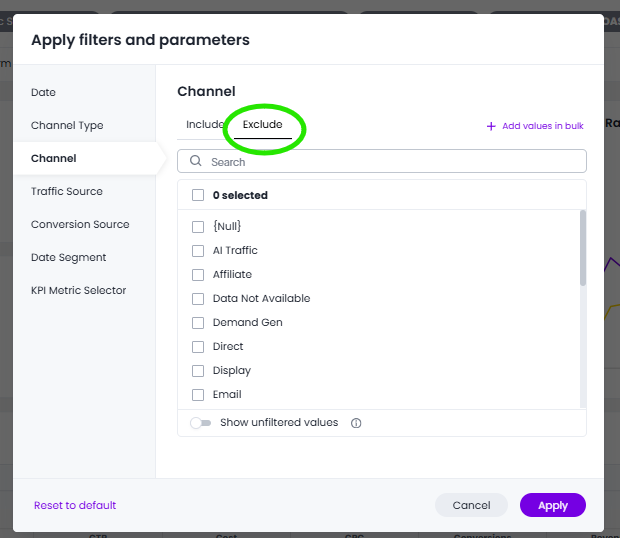
Excluding Values from Results
To exclude specific values from your results:
-
In a dashboard or visulization .
-
Locate the column you want to filter by (e.g., Product Category or Campaign) and click the Filter icon.
-
Select the value you want to exclude (e.g., Electronics) and apply the filter.
Alternatively, use the “not equal to” operator directly in the search bar:
Product Category != Electronics
This will return all data except the excluded value.
 This article was updated by Claire. If you have any questions please email team@askbosco.io
May 2026