.png?width=260&height=102&name=ASKBOSCO_Logo_Grey_RGB%20(6).png)
Overview
Explore Mode lets you dig deeper into your data directly from a Dashboard visualization.
With Explore Mode, you can:
- Open a visualization for AI-guided exploration
- Apply suggested filters
- Add or replace data columns
- Compare groups using the “versus” keyword
All of this is powered by Usage-Based Ranking (UBR), which personalizes suggestions based on search popularity and your own activity history.
Accessing Explore Mode
- Hover over any visualization in your Dashboard.
- Click the ellipsis (⋮) icon in the top-right corner.
- Select Explore from the dropdown menu.
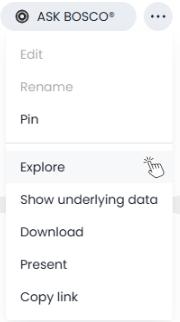
Your visualization will open in Explore Mode - still fully interactive, allowing you to drill down or undo changes just like in the Dashboard.
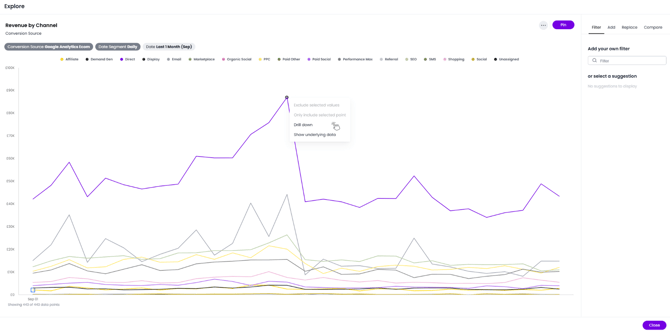
Navigating Explore Mode
In Explore Mode, you’ll find four key tabs on the right side of the panel:
- Filter
- Add
- Replace
- Compare
Filter
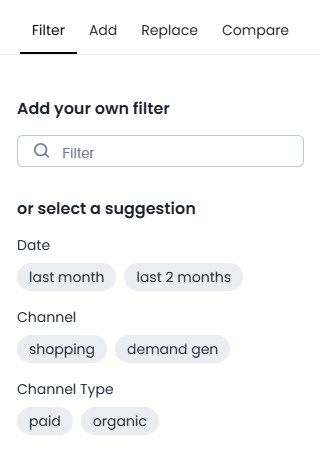
The Filter tab appears by default. Here you can:
- Add your own filters, or
- Choose from suggested filters generated by UBR
UBR analyzes search popularity across your organization and your own usage history to suggest relevant filters.
Example:
Select the suggested filter Channel = Shopping to narrow down your data.
Add
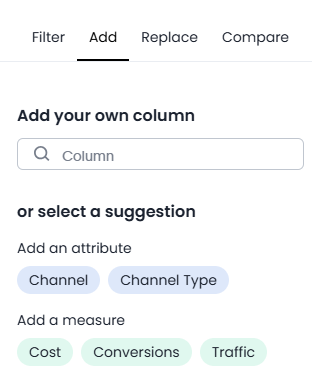
The Add tab lets you include new columns in your visualization for deeper insight.
You can:
- Select a specific column to add, or
- Use UBR’s suggested columns
Example:
Add the column State to break down total monthly sales for shirts by location.
Replace
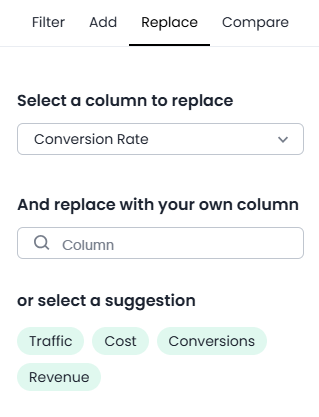
Use the Replace tab to swap one measure or attribute with another.
Example:
Replace the Sales column with Quantity Purchased to view item counts instead of revenue.
Compare
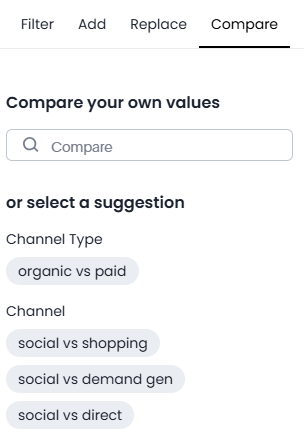
The Compare tab allows you to evaluate two values using the versus keyword.
Example:
Compare performance this year vs. last year using the date filter.
- Choose the first value (Last Year).
- Choose the second value (This Year).
- Click Apply to generate the comparison.
Saving Your Changes
If you want to keep the modified visualization:
- Click the Pin icon.
- Choose whether to add it to the current Dashboard or a different one.
- Click Close to exit Explore Mode and return to your Dashboard.

Summary
Explore Mode helps you:
-
Interact with your visualizations dynamically
-
Use AI-powered suggestions to refine your data view
-
Quickly compare, add, or replace metrics
-
Save insights directly to your Dashboard
With UBR, the more you use ASK BOSCO®, the smarter your suggestions become — helping you find insights faster and more intuitively.
This article was created by Grace. If you have any questions or need a hand, feel free to reach out to us at team@askbosco.io

Jun 2026