.png?width=260&height=102&name=ASKBOSCO_Logo_Grey_RGB%20(6).png)
What Are Cross Filters?
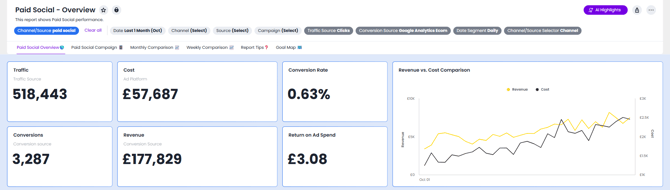
Cross filters allow you to apply a temporary filter directly from a visualization.
When you right-click a data point in any chart or visual, you can filter the entire Dashboard by that selection. This helps you quickly explore related data without editing or saving filters.
How to Use Cross Filters
To quickly filter your Dashboard by a certain value:
-
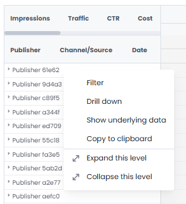
Right-click a data point in any visualization.
-
Select Filter from the pop-up menu.
-
The entire Dashboard will now display only the data related to that value.
For example:
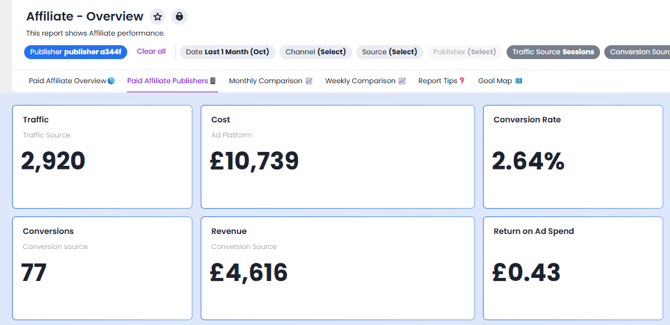
If you right-click on a Publisher in the Paid Affiliates report, every visualization on the Dashboard updates to show data only from that Publisher.
A visual such as Last month Traffic would now only display Traffic from the selected Publisher.
Removing Cross Filters
You can easily remove cross filters in two ways:
-
Option 1: Right-click the same data point again and select Remove Filter.
-
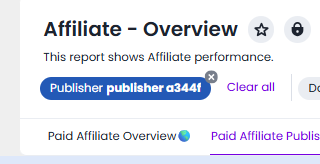
Option 2: Hover over the filter name in the filter bar (under the Dashboard title) and click the x icon.
To remove all cross filters at once, select Clear all in the filter bar.
This will clear any temporary cross filters but will not affect your permanent Dashboard filters.
Limitations
-
Cross filters can only be applied to attributes (not measures).
-
Dates are not supported at this time.
-
Cross filters are temporary - they cannot be saved or exported.
For persistent filters that remain active across sessions, see the Using Filters in ASK BOSCO® article.
This article was created by Grace. If you have any questions or need a hand, feel free to reach out to us at team@askbosco.io
