.png?width=260&height=102&name=ASKBOSCO_Logo_Grey_RGB%20(6).png)
Overview
ASK BOSCO® lets you share your Dashboards so teammates can view insights or collaborate on updates.
By default, only the Dashboard creator can see a saved Dashboard. Sharing allows others to view or edit it depending on the permissions you choose. They must have an ASK BOSCO® account to then view a shared dashboard.
Note this does not send the dashboard via email to other users - this is not currently a function of ASK BOSCO®
How to Share a Dashboard
- Open the Dashboard you want to share.
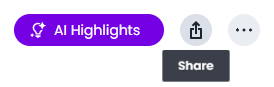
- Click the Share button in the top-right corner.
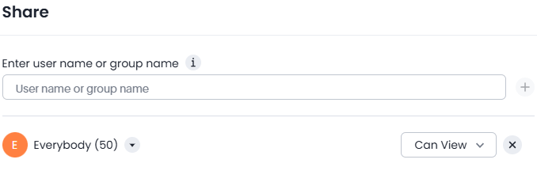
- In the share window, enter:
- The name or email address of the person you want to share with, or
- The name of a group if you want to share with several users at once.
Set the Access Level
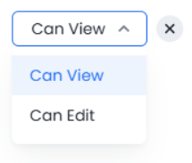
Before sending, choose the right level of access from the dropdown list:
- Can view → The user can open and view the Dashboard but can't make or save changes.
- Can edit → The user can view, modify, and save updates to the Dashboard.
⚠️ Any edits replace the existing version for everyone, so grant edit access carefully.
You can assign different access levels to different users or groups in the same share action.
Finishing Up
Once you've selected your recipients and permissions, click Share to give them access.
The Dashboard will appear in the recipient's list, and they'll be able to view or edit it based on the permissions you've assigned.
Sharing a Direct Link to a Dashboard
If you just want to send someone a link straight to a specific Dashboard for example, pasting it into an email, you can do this from the same Share window.
- Open the Dashboard and click the Share button.
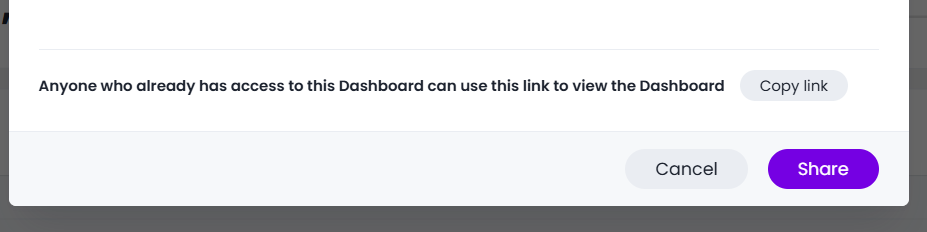
- Click Copy link.
- Paste the link wherever you need it (an email, a message, etc.) and send it on.
When the recipient opens the link, it will take them straight through to that exact Dashboard.
⚠️ Only use the Copy link button to get a shareable link. Copying the address directly from your browser's URL bar won't work — it doesn't include the correct Dashboard and organization identifiers, so the recipient will just land wherever they were last logged in rather than on the Dashboard you meant to share. Always generate the link via Share → Copy link.
As with named sharing above, the recipient still needs to have been granted access to view or edit the Dashboard for the link to open it correctly, sending the link on its own doesn't grant access.
Downloading a Dashboard
You can also download your Dashboard as a PDF.
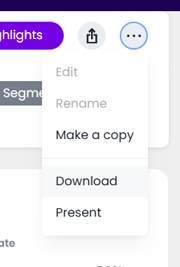
There are now two PDF download options available:
- PDF (continuous) (recommended and now the default) – Uses our new WYSIWYG (What You See Is What You Get) format, giving a much cleaner PDF that closely matches how your Dashboard appears in ASK BOSCO®.
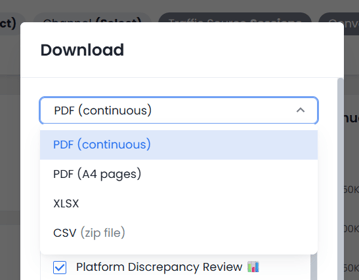
- PDF (legacy) – The original PDF layout is still available if you prefer the previous format.
Summary
Sharing Dashboards in ASK BOSCO® makes collaboration simple and secure.
- Use Can view when you only want others to see your Dashboard.
- Use Can edit when collaborators need to make changes.
- Use Share → Copy link to send someone straight to a Dashboard — never copy the link from your browser's address bar, as it won't take them to the right place.
- The recipient still needs view or edit access granted before a shared link will work for them.
- When downloading a Dashboard, PDF (continuous) is now the default option and provides a more accurate representation of what you see in ASK BOSCO®.
This article was created by Grace. If you have any questions or need a hand, feel free to reach out to us at team@askbosco.io

September 26