.png?width=260&height=102&name=ASKBOSCO_Logo_Grey_RGB%20(6).png)
Overview
The ASK BOSCO® Shopify App provides a guided onboarding experience to help you get set up quickly and start exploring your data.
During the setup process you'll:
- Install the ASK BOSCO® Shopify App
- Select your billing plan and begin your free trial
- Automatically connect your Shopify store
- Explore the platform while your data processes
- Create an ASK BOSCO® web account (optional)
- Connect additional marketing platforms
- Access training resources and support
Before You Begin
Before installing the app, you'll need:
- Admin access to your Shopify store
- Permission to install Shopify Apps
- Access to the email address associated with your Shopify account
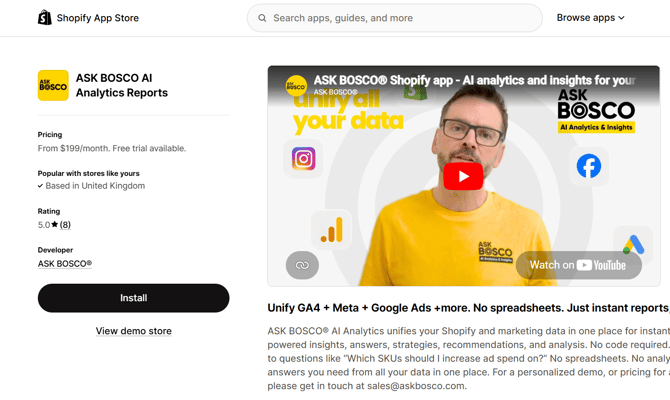
Step 1 – Install the ASK BOSCO® App
Visit the Shopify App Store and search for ASK BOSCO®.
Select Install to begin.
Step 2 – Review Permissions
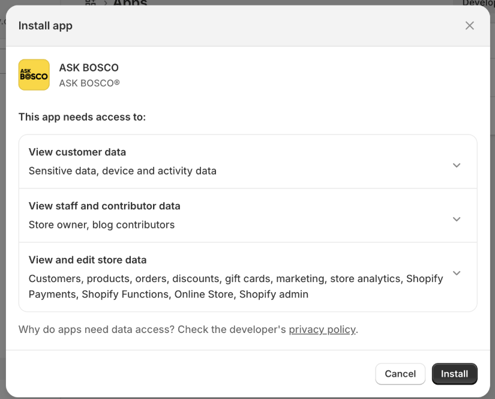
During installation you'll be asked to approve the permissions required by ASK BOSCO®.
These permissions allow the app to securely access your Shopify data, including:
- Orders
- Products
- Customers
- Sales information
Review the permissions and select Install to continue.
Step 3 – Select Your Billing Plan
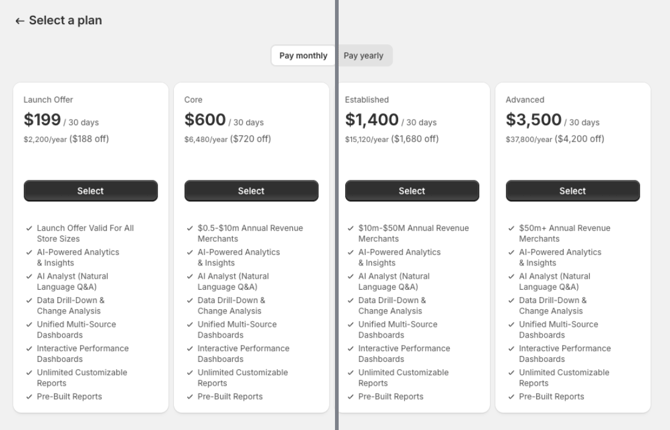
Choose the subscription plan you'd like to use and start your free trial.
Once complete:
- Your ASK BOSCO® client account is automatically created
- Your Shopify data sync begins automatically
No additional setup is required at this stage.
Step 4 – Open the ASK BOSCO® Shopify App
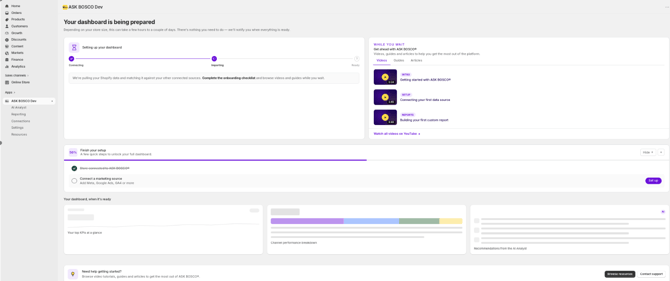
Once installation is complete you'll land on the ASK BOSCO® Shopify App.
From here you can begin exploring the platform while your data syncs in the background.
Waiting for Your Data
Your Shopify data will begin syncing automatically, depending on the amount of historical data, this may take some time.
While your data is processing, different areas of the platform will provide helpful onboarding content instead of reporting data.
Home
If your data is still syncing you'll see:
- Your onboarding checklist
- Setup progress
- Helpful resources
- Support content
Once your data is ready you'll gain access to:
- KPI dashboards
- Reporting overview
- AI-powered insights
- Navigation to the ASK BOSCO® web platform (optional)
- Links to contact support
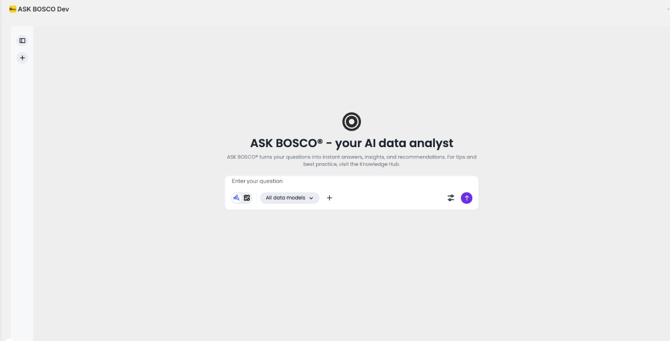
AI Analyst
Before your data is ready you'll have access to:
- Example questions
- Videos
- Learning resources
Once processing has completed you'll be able to use the full AI Analyst experience, including chat history.
Reporting
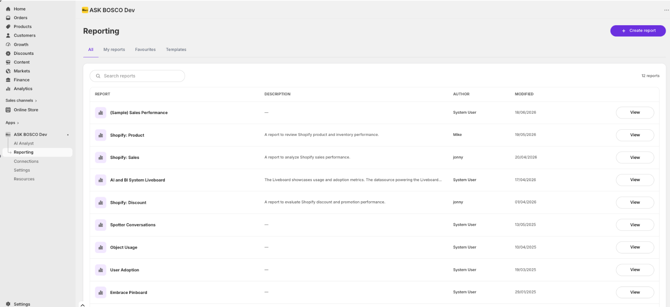
Before data is available you'll see:
- Example reports
- Reporting videos
- Learning resources
Once your data has finished syncing, you'll have access to:
- Standard Reports – Ready-made reports covering key performance metrics across your connected data sources.
- Report Builder – Create and customise your own reports by selecting the metrics, dimensions, and visualisations that matter most to you.
- AI Studio – Build reports using natural language prompts. Simply describe the report you'd like to create, and AI Studio will generate visualisations, KPIs, and layouts automatically.
- Custom Reporting – Create bespoke dashboards and reports tailored to your business requirements, allowing you to analyse exactly the data you need.
Connections
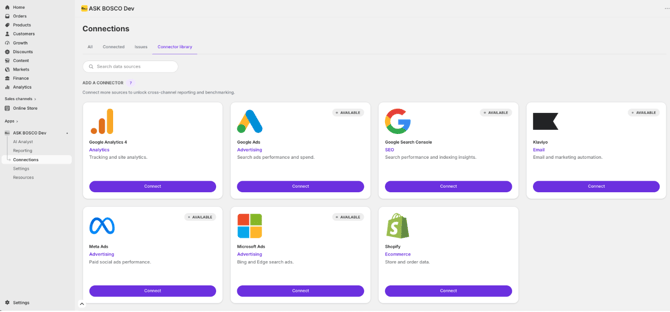
The Connections page allows you to manage all of your connected platforms.
From here you can:
- View existing connections
- Connect additional marketing platforms
- Manage existing integrations
If you need to connect more data sources:
- Open the Connector Library.
- Select Connect for the relevant platform.
- Complete the setup steps.
Once complete, your additional data will begin syncing.
Resources
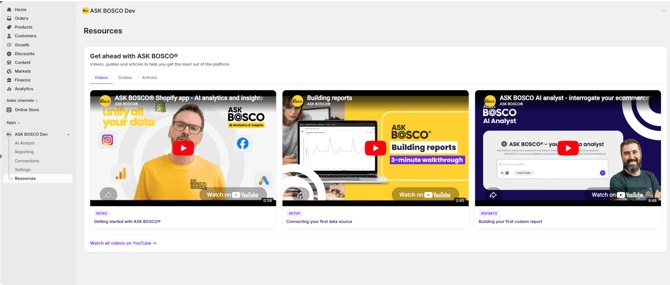
The Resources section contains:
- Product guides
- Training videos
- Best practice content
These resources are available throughout your onboarding journey.
Accessing the ASK BOSCO® Web Platform (Optional)
Once your Shopify data has synced, you can continue using the Shopify App or access the full ASK BOSCO® web platform.
To access the web platform:
- Open the Shopify App and select Open Platform.
- Create an ASK BOSCO® account using either:
- Google Single Sign-On (SSO)
- Email and password
- Your user account will automatically be linked to your Shopify client account.
- Sign in and begin using the full web platform.
No action is required from the ASK BOSCO® team during this process.
What's Next?
Once your setup is complete you'll be able to:
- Monitor Shopify performance
- Use AI Analyst to explore your data
- Build custom reports with Report Builder and AI Studio
- Connect additional marketing channels
- Continue learning through the Resources section and Knowledge Hub
This article was created by Grace. If you have any questions or need a hand, feel free to reach out to us at team@askbosco.io

June 26