---
title: Customizing Visuals in ASK BOSCO®
description: Learn how to customise charts and visuals on your ASK BOSCO® digital marketing dashboard to better present reporting data.
---
[Skip to content](https://info.askbosco.io/knowledge/customizing-visuals-in-ask-bosco#main-content)
English
Show submenu for translations
[.png?width=260&height=102&name=ASKBOSCO_Logo_Grey_RGB%20(6).png)](https://app.askbosco.io/)
- [Book a call with our team](https://modo25.com/book-a-call/)
Open main navigation
Close main navigation
- [Book a call with our team](https://modo25.com/book-a-call/)
- English
Show submenu for translations
- [Contact us](mailto:team@askbosco.io)
[Contact us](mailto:team@askbosco.io)
How can we help you?
- There are no suggestions because the search field is empty.
1. [Here to Help](https://info.askbosco.io/knowledge?hsLang=en)
2. [Knowledge Hub](https://info.askbosco.io/knowledge/knowledge-hub?hsLang=en)
3. [Getting Started](https://info.askbosco.io/knowledge/knowledge-hub?hsLang=en#getting-started)
# Customizing Visuals in ASK BOSCO®
## ASK BOSCO® automatically selects the most suitable visualization for your data, but you can easily change chart types, adjust formatting, and apply advanced customization options.
#### This article walks you through how to:
- [Changing Visualization Types](https://info.askbosco.io/knowledge/customizing-visuals-in-ask-bosco#changingvisualizationtypes)
- [Editing Chart Configurations](https://info.askbosco.io/knowledge/customizing-visuals-in-ask-bosco#editingchartconfig)
- [Advanced Chart Customisation](https://info.askbosco.io/knowledge/customizing-visuals-in-ask-bosco#advancedchartsettings)
- [Applying Conditional Formatting](https://info.askbosco.io/knowledge/customizing-visuals-in-ask-bosco#applyingconditonalformatting)
- [Using Pivot Tables](https://info.askbosco.io/knowledge/customizing-visuals-in-ask-bosco#usingpivottables)
### **1. Changing Visualization Types**
ASK BOSCO® chooses a default visualization, but you can switch to any chart type.
**How to change the visualization:**
1. Run a search (e.g., “Sessions by Channel”).
2. Click **Edit** → **Change Visualization**.
3. Pick a new chart type from the library.

**Tip** - Hover over greyed-out charts to see what data they require.
---
### **2. Editing Chart Configurations**
Each chart has customization options for labels, colors, and formatting.
**To customise a chart:**
1. Click **Edit.**
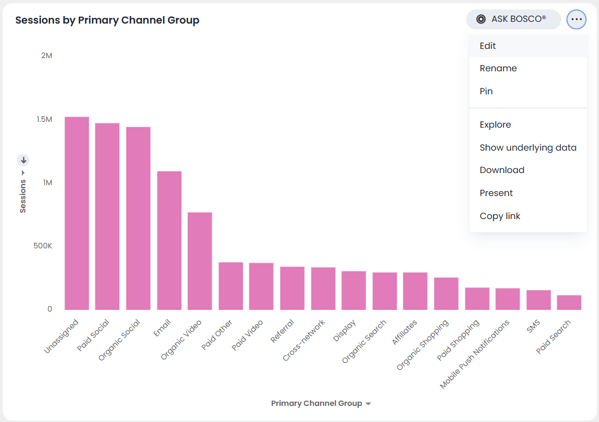
1. Select a measure or attribute to update labels, formats, or colors.

**Add more data:**
Add a field to your search → open Edit Chart → drag it into *Category* or *Breakdown* → Apply.
---
### **3. Advanced Chart Customisation**
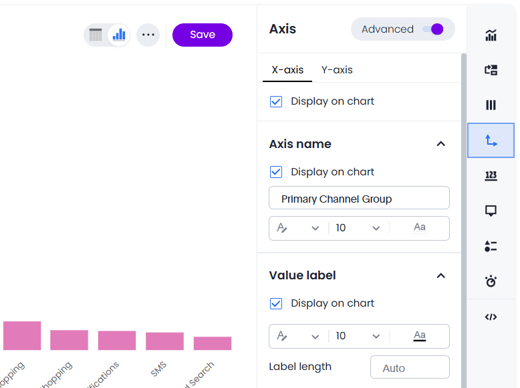
You can fine-tune axes, labels, and formatting using the bar on the right to navigate to each component.
**Examples:**
- Rename or group Y-axes
- Enable All Labels
- Add gridlines
- Set fixed scale ranges
Make sure you have **Advanced** ticked in the panel for all available options.
---
### **4. Applying Conditional Formatting**
Highlight important values in a visualization.
**Example 1: Highlight high values**
1. Go to column using the bar on the right
2. Click **Conditional Formatting**
3. Set a rule (e.g., “Greater than 1,000,000”)
4. Choose a highlight color → Apply
---
### **5. Advanced Chart Settings**
Helpful for polishing visuals.
**You can customise:**
- Tooltips (choose which fields show)
- Gridlines (colour, width, style)
- Add regression lines (Scatter charts)
- Change chart background colour
---
### **6. Using Pivot Tables**
Pivot tables compare multiple measures and dimensions side-by-side.
**Basic workflow:**
1. Run a search → Type → **Pivot Table**
2. Drag fields into Rows, Columns, and Values
3. Use **Display** for totals
4. Change display format (e.g., % of total)
5. Turn on Heatmap mode or use conditional formatting
### **Key Takeaways**
- You can change any ASK BOSCO® visualization and customise it fully.
- Use labels, colours, axis settings, and formatting to make reports clearer.
- Conditional formatting highlights trends immediately.
- Pivot tables are ideal for comparing multiple metrics at once.
August 2026
This article was created by Grace. If you have any questions or need a hand, feel free to reach out to us at [**team@askbosco.io**](mailto:team@askbosco.io)[mailto:team@askbosco.io](mailto:team@askbosco.io)

- [FAQs](https://info.askbosco.io/knowledge/faqs?hsLang=en#main-content)
- [Onboarding](https://info.askbosco.io/knowledge/faqs?hsLang=en#onboarding)
- [Knowledge Hub](https://info.askbosco.io/knowledge/knowledge-hub?hsLang=en#main-content)
- [Getting Started](https://info.askbosco.io/knowledge/knowledge-hub?hsLang=en#getting-started)
- [Data Connections & Integrations](https://info.askbosco.io/knowledge/knowledge-hub?hsLang=en#data-connections-integrations)
- [Onboarding & Implementation](https://info.askbosco.io/knowledge/knowledge-hub?hsLang=en#onboarding-implementation)
- [Using the Reporting Tools](https://info.askbosco.io/knowledge/knowledge-hub?hsLang=en#using-the-reporting-tools)
- [Product Updates & Features](https://info.askbosco.io/knowledge/knowledge-hub?hsLang=en#product-updates-features)
- [ASK BOSCO® Training](https://info.askbosco.io/knowledge/ask-bosco-training?hsLang=en#main-content)
- [Getting Started With ASK BOSCO® Training](https://info.askbosco.io/knowledge/ask-bosco-training?hsLang=en#getting-started-with-ask-bosco-training)
- [Module 1 - Introduction & Overview](https://info.askbosco.io/knowledge/ask-bosco-training?hsLang=en#module-1-introduction-overview)
- [Module 2 - Report Features & Analytics Basics](https://info.askbosco.io/knowledge/ask-bosco-training?hsLang=en#module-2-report-features-analytics-basics)
- [Module 3 - Budget Planning & Allocation](https://info.askbosco.io/knowledge/ask-bosco-training?hsLang=en#module-3-budget-planning-allocation)
- [ASK BOSCO® AI Analyst](https://info.askbosco.io/knowledge/ask-bosco-training?hsLang=en#ask-bosco-ai-analyst)
- [ASK BOSCO® Shopify App](https://info.askbosco.io/knowledge/ask-bosco-shopify-app?hsLang=en#main-content)
- [Getting Started with Shopify](https://info.askbosco.io/knowledge/ask-bosco-shopify-app?hsLang=en#getting-started-with-shopify)
- [Shopify Reporting](https://info.askbosco.io/knowledge/ask-bosco-shopify-app?hsLang=en#shopify-reporting)
- [Product Releases](https://info.askbosco.io/knowledge/product-releases?hsLang=en)
- [Data connections](https://info.askbosco.io/knowledge/data-connections?hsLang=en)
- [Book a call with our team](https://modo25.com/book-a-call/)
[](https://askbosco.io/)
One Embankment, Neville Street. Leeds. LS1 4DW.
Tel: +[44 20 3355 6741](tel:44%2020%203355%206741)
[mailto:email@email.com](mailto:email@email.com)
Copyright © 2025, ASK BOSCO®