.png?width=260&height=102&name=ASKBOSCO_Logo_Grey_RGB%20(6).png)
Navigation -
Access and start a conversation
Editing and customizing answers
Using AI Analyst in dashboards
Resetting and starting a new analysis
1. Access and start a conversation with AI Analyst
You can start using AI Analyst from the Reporting area or directly from a dashboard visualization.
To start a conversation:
-
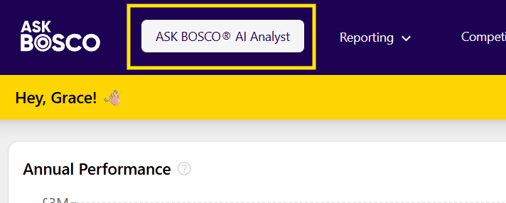
Open ASK BOSCO® and navigate to AI Analyst.
-
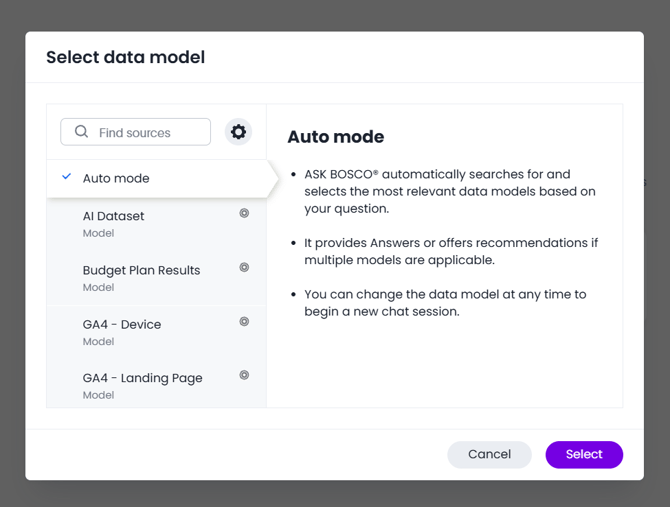
Select the data source you want to analyze, it will default to auto mode but if you want to change this you can choose from a list of sources
-
Enter your question in the search bar using natural language.
Example questions:
-
Best performing channels last month
-
Revenue by campaign this quarter
-
Top products by sales
Press Enter or click Send to run the query.

AI Analyst interprets ambiguous terms (for example “best performing”) using the most relevant metrics such as revenue, conversion rate, or ROAS.
2. Understanding the answer
Once your question is processed, AI Analyst generates a chart,table view or commentary of the results.
You can:
-
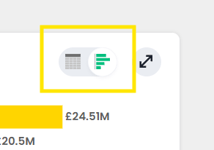
Toggle between chart and table views
-
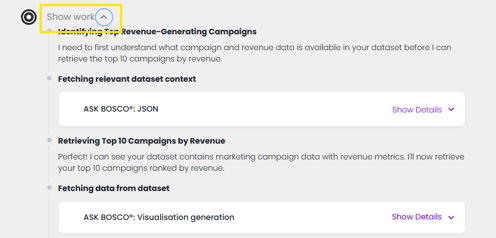
Click Show Work to see how your question was interpreted
-
Then click Show Details to view the attributes, filters, and measures used to generate the result
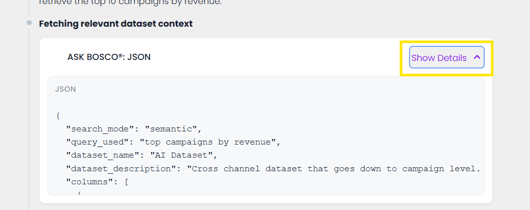
This transparency helps you understand exactly how the insight was produced.
You can also:
-
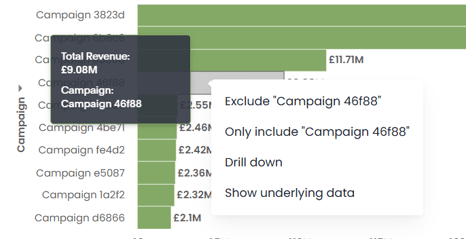
Drill down into data by right-clicking on chart elements
-
View column statistics, data types, and formula logic
This provides full visibility into how metrics and calculations are derived.
3. Editing answers and customizing visualizations
If you want to refine the result of a chart or graph, click Edit beneath the answer.
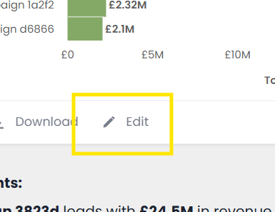
From here you can:
-
Add or remove fields
-
Change filters
-
Modify sorting
-
Change the chart type
-
Adjust chart settings
Chart customization
Charts can be refined using the Chart Settings panel on the right-hand side.
This panel allows you to adjust:
-
Chart type and layout
-
Column formatting (number, currency, percentage)
-
Axes and data labels
-
Tooltips and legends
-
Display and styling options
Settings open in Basic Mode by default, with additional controls available in Advanced Mode.
This makes it easier to create consistent, presentation-ready visualizations.
See Chart Settings Article for more information on chart editing.
4. Search Mode vs Research Mode
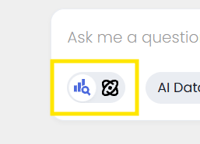
AI Analyst can operate in two analytical approaches depending on the type of question you ask.
Search Mode (quick insights)
Search mode is used for direct analytical questions where you want a fast answer from your dataset.
Examples:
-
What was revenue last month?
-
Revenue by channel
-
Top 5 campaigns by conversions
AI Analyst quickly generates a chart or table to answer the question.
This is ideal for daily reporting and quick data checks.
Research Mode (deeper analysis)
Research mode is designed for broader, exploratory questions where AI Analyst performs deeper analysis to uncover trends, patterns, or explanations.
Examples:
-
Why did revenue drop last month?
-
What trends should I be aware of in our marketing performance?
-
Where are our biggest growth opportunities?
Instead of a single chart, AI Analyst may return multiple insights, summaries, or deeper analysis to help guide decision-making.
This mode is useful for strategic analysis and root-cause investigation.
5. Using AI Analyst in dashboards and pinning insights
AI Analyst can also be accessed directly from dashboard visualizations.
To do this:
-
Hover over a chart in a dashboard.
-
Click the AI Analyst icon.
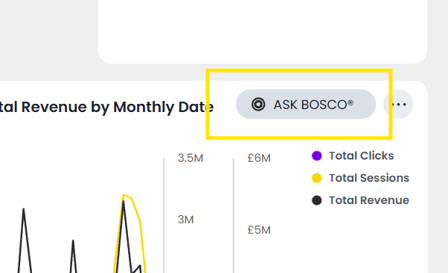
AI Analyst will automatically understand the context of the chart and allow you to ask follow-up questions.
Example:
-
Top 3 channels by revenue
-
Revenue change year-over-year
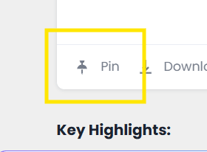
If an insight is useful, you can pin it to a dashboard so it becomes a permanent visualization.
Click the Pin icon at the bottom of the chart and choose the dashboard where you want to save it.
6. Chat history and continuing past conversations
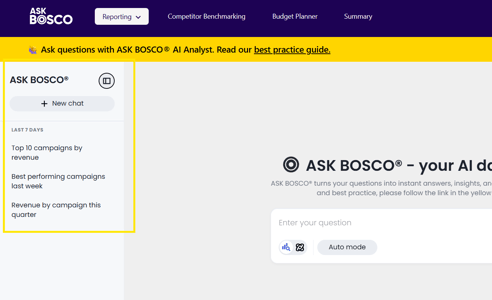
AI Analyst automatically saves your conversations so you can return to previous analysis.
Your chat history appears in the left-hand panel, where conversations are stored and organized.
Key features
View previous conversations
Each conversation is automatically titled based on the first question you asked.
The most recent conversations appear at the top.
Continue past analysis
You can reopen any previous conversation and continue asking follow-up questions.
AI Analyst remembers the context of the original question, allowing you to build deeper analysis over time.
Organize your chat history
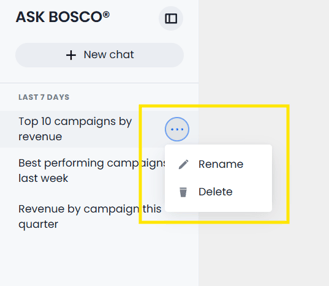
You can rename conversations to make them easier to find.
Example titles:
-
📈 Weekly Marketing Review
-
🚀 Q1 Performance Analysis
-
🎯 Campaign Optimization
You can also delete conversations you no longer need.
7. Reset and start a new analysis
AI Analyst conversations maintain context, meaning each question builds on the previous one.
If you want to start a completely new analysis:
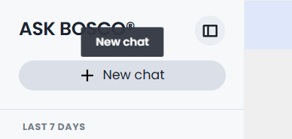
Click New Chat.
Note: Prompt Character Limit
AI Analyst has a character limit on the prompt input box.
- The limit is approximately 3,000 characters (around 500–750 words)
- This is usually sufficient for most questions and analysis
However, you may reach this limit when:
- Writing very long or complex prompts
- Asking AI Analyst to summarise or recreate an entire conversation in a single query
If this happens, we recommend:
- Breaking your query into smaller follow-up questions
- Continuing the analysis step-by-step rather than in one prompt
This article was created by Grace. If you have any questions or need a hand, feel free to reach out to us at team@askbosco.io

March 2026